
 Saudi Arabia
 Bahrain
 QatarComing soon
 United Arab EmiratesComing soon
 KuwaitComing soon
 OmanComing soon
Free tool
Your link, ready in seconds A free WhatsApp link generator
Type your business's WhatsApp number and a message your customer can start with, and get a direct wa.me link and a QR code for print. Free, and your number never leaves your device.
Start here
Make your link
Your link
Type your number, and your link and its code show here.
Print the code on your card, menu or shop front: a customer points their phone camera at it and your chat opens.
Your number and text never leave your device: the link and the code are made in your browser, and we keep nothing.
Ready lists
Want WhatsApp numbers of new customers?
These lists hold the most WhatsApp numbers. Each is an Excel and CSV file, with a ready WhatsApp link for every mobile.
Every list by activity
- RestaurantsAll of Saudi ArabiaRiyadhJeddahMadinahMakkahDammamAt TaifAl KhobarBuraidahTabukAl AhsaKhamis MushaytHailNajranAbhaAl QatifAl JubailJazanArarSakaka
- CafesAll of Saudi ArabiaRiyadhJeddahMadinahMakkahDammamAt TaifAl KhobarQassimAl AhsaAbhaBuraidahKhamis MushaytTabukHailNajranAl JubailSakakaUnayzahJazanArar
- Groceries and supermarketsAll of Saudi ArabiaRiyadhJeddahDammamMakkahMadinahAl Khobar
- Bakeries and sweetsAll of Saudi ArabiaRiyadhJeddahDammamBuraidahMakkahMadinahAl KhobarAt TaifTabukAl AhsaKhamis MushaytHailUnayzahAbhaNajranSakaka
- Contracting companiesRiyadhJeddahDammamAl KhobarMadinahMakkah
- Real estate officesJeddahDammamMadinahAl Khobar
- Hospitals and medical centersAll of Saudi ArabiaRiyadhJeddahMakkahMadinahDammamAt TaifBuraidahAl KhobarHailKhamis MushaytAbhaNajranJazan
- Online storesAll of Saudi Arabia
- Factories and plantsRiyadhJeddahDammamMadinahAl KhobarBuraidahMakkahAt TaifHafar Al BatinKhamis Mushayt
- Hotels and resortsRiyadhMakkahJeddahMadinahDammamAl Khobar
- Law firmsRiyadhJeddahMakkahMadinahDammamAl Khobar
- Engineering officesRiyadhJeddahDammamAl KhobarMakkahMadinah
- Marketing and advertisingJeddahDammamAl KhobarMadinahBuraidahHailAt TaifKhamis MushaytTabukAl Jubail
- Schools and kindergartensAll of Saudi ArabiaRiyadhJeddahMakkahMadinahAt TaifDammamBuraidahAl KhobarHailTabukNajranKhamis MushaytAl AhsaAbhaAl KharjAl JubailUnayzahSakakaArarAl Qatif
- Barber shopsHail
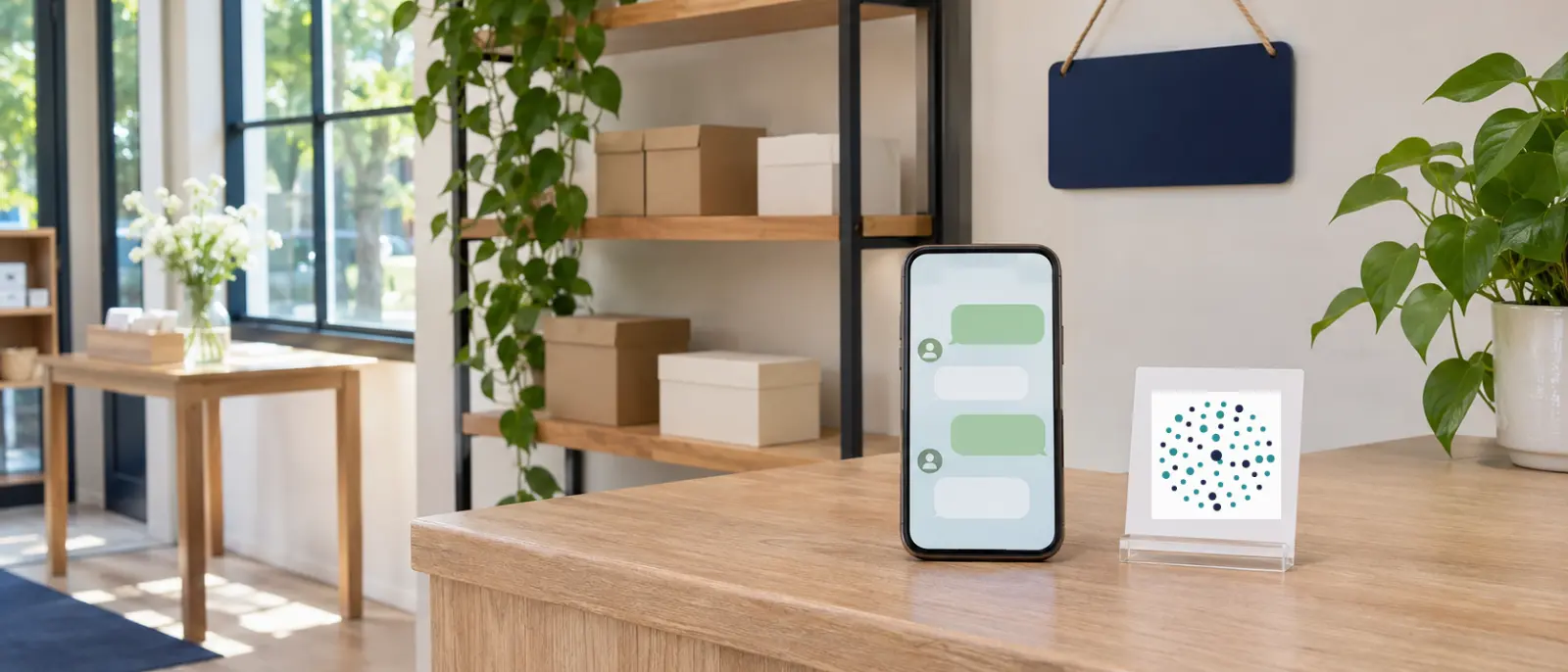
WhatsApp link generator: ready text and a QR code for your business number
A WhatsApp link generator turns your business number into a link in seconds: type the number, add ready text if you like, and get a direct link and a QR code to print. Here's where to put the link, how to write its message, which numbers it works with, and how to use it without bothering anyone.
In short
- A wa.me link opens a chat with your number without the customer saving it, ready for your bio, ads and cards.
- Ready text starts the chat for your customer, and tells you where they came from.
- It works for any number on WhatsApp: a mobile, or a unified or landline number on WhatsApp Business.
Last updated 22 November 2026
What is a wa.me WhatsApp link?
A WhatsApp link is a short link that opens a chat with your number straight away, without the customer saving your number first. It starts with wa.me/, followed by your number in international form: the country code, then the number without its leading 0, and without + or spaces.
| The link | What happens when a customer taps it |
|---|---|
| A link without text | An empty chat with your number opens, and the customer types what they need |
| A link with ready text | The chat opens with the message typed in, and the customer sends it in one tap |
| A QR code | The customer points their phone camera at it, and the same link opens |
The tool writes your number correctly however you type it, and gives you the link and the code on the same page.
Where to use your link
| Where | How |
|---|---|
| Your social bios | The link in the website field on Instagram, TikTok, Snapchat and X, or on your links page |
| Ads | A “Message us” button or the ad's link opens WhatsApp, with text that says which ad the customer came from |
| Cards and signatures | The QR code on your business card, and the link in your email signature and your website's contact page |
| The QR code on menus, shop fronts, invoices, boxes and exhibition stands | |
| Maps | The link on your business's Google Maps profile, next to your number |
Ready text to start the chat
Ready text takes the first step off your customer's hands: they open the chat and find their question already typed. Give each place its own text, and you'll know where every customer came from.
| Where | Sample text |
|---|---|
| Bio | “Hello, I'd like to ask about your prices.” |
| An ad | “Hello, I saw your ad on Snapchat and I'd like to know about the offer.” |
| Menu or shop front | “Hello, I'd like to order from the menu.” |
| Business card | “Hello, I have your card and I'd like to get in touch.” |
| Booking page | “Hello, I'd like to book an appointment.” |
Keep the text short and clear: one line is enough, and the code prints clearer too.
Mobile, unified or landline numbers
A WhatsApp link works with any number that's on WhatsApp. A mobile isn't the only choice: a business can run WhatsApp Business on its unified number or its landline, so customers message the same number they already know.
- A mobile: type it the way you know it, such as 05, 5, 966 or +966.
- A unified number or a landline: type it as it is, and the tool makes its link. The link opens a chat if the number is on WhatsApp Business.
- A number from another country: type it with + and its country code.
The tool can't tell whether a number is on WhatsApp. So press “Try the link” before you share or print it: if the chat opens with your business, your link is ready.
How to make a WhatsApp link
- Type your number: your business's WhatsApp number, a mobile, unified number or landline.
- Add ready text: optional; pick one of the examples or write your own.
- Press “Make the link”: your link and QR code appear.
- Try the link: make sure the chat opens with your number.
- Copy it or download the code: put the link in your accounts, and print the code on your materials.
Many numbers?
Paste a column of numbers from Excel or any file, one per line. The tool writes the numbers in international form and gives you each one's link, ready to copy or download as a CSV file.
These links carry no ready text, and each tap opens one chat. Write each business a personal message: introduce yourself and your business, say why you're getting in touch, and never message again anyone who says no.
Tips before you share your link
- Test it from another phone: make sure the chat opens with your business number and the text reads right.
- One number everywhere: the same link in your accounts, ads and print, so customers never get lost.
- Set up WhatsApp Business: a greeting message, an away message for after hours, and your opening hours.
- Don't print the code too small: add a line next to it such as “Scan to chat on WhatsApp”, and test it with your phone before printing the full run.
- Reply quickly: a customer who tapped your link is waiting, so make sure someone watches the chats.
Our lists come with their links
Every mobile in our lists comes with its WhatsApp link in the file, so there's nothing to clean yourself. Pick your activity and city.. and start.
| Service | Suits you if |
|---|---|
| Free sample | You'd like to see the file before you buy. Open an updated list's page, see ten of its businesses, and ask for the sample file by email. |
| Ready lists | You know your customers' activity and city. The file is yours as soon as you pay, in Excel and CSV. |
| Customer follow-up tool | You have a list file and want to follow up every business in it: status, note, date and a one-tap WhatsApp link. |
Frequently asked questions
Before you start
How do I make a WhatsApp link for my number?
Type your number the way you know it, add ready text if you like, and press “Make the link”. You get a wa.me link to copy and a QR code to download and print.
Does a WhatsApp link work with a unified or landline number?
Yes, if the number is on WhatsApp Business. The link opens a chat with any number registered on WhatsApp, whether it's a mobile, a unified number or a landline. Try the link yourself before you share it.
Can I put ready text in a WhatsApp link?
Yes. Your customer finds the text typed in when the chat opens, and they send it. Keep it short, and let it say where the customer came from, such as “I saw your ad on Snapchat”.
Does a WhatsApp QR code expire?
No. The code is a picture of the link itself, and it works as long as your number is on WhatsApp. If you change the number or the text, download a new code.
Do you keep my number or the numbers I paste into the WhatsApp link tool?
No. The tool runs entirely in your browser: the numbers are never uploaded or kept, and they're gone when you close the page.
Can I message many numbers at once with WhatsApp links?
No. Each link opens one chat, and there's no bulk sending. Bulk messages to people who never contacted you annoy them, and WhatsApp may ban the number that sends them. Introduce yourself, and never message again anyone who says no.
Read next
Ideas to start with
WhatsApp marketing: a guide to marketing your business on WhatsApp
WhatsApp marketing step by step: set up a business account, start with a list of businesses that fit, write a short message that gets read, and follow up.

WhatsApp ads: how to write, send and measure them
How to write a short, convincing WhatsApp ad, choose how to send it, and measure it by delivery, read and reply rates, orders and opt-outs.
The art of cold outreach to new customers
Cold outreach to new customers: 5 principles for a message or call that opens a door, a clear follow-up sequence, and how to handle replies and a no.